

Setup Wizard
The Authrim Setup Wizard provides an intuitive web-based interface for deploying Authrim to Cloudflare. This guide walks you through each step of the setup process.
Before You Begin
Requirements
Before running the setup wizard, ensure you have the following:
| Requirement | Details |
|---|---|
| Cloudflare Account | Free tier is sufficient for development. Workers Paid plan recommended for production. |
| Node.js | Version 18 or later |
| npm | Included with Node.js |
Information to Prepare
Having these ready will make the setup process smoother:
- Environment name: How you want to identify this deployment (e.g.,
prod,staging,dev) - Custom domain (optional): If you want to use your own domain instead of
*.workers.dev - Email service credentials (optional): API key from Resend or similar service for sending OTP emails
Cloudflare Plan Considerations
| Feature | Free Plan | Workers Paid ($5/month) |
|---|---|---|
| Basic OIDC functionality | ✅ | ✅ |
| Custom domains | ❌ | ✅ |
| Higher request limits | Limited | ✅ |
| Production use | Not recommended | ✅ |
Starting the Setup Wizard
Run the following command to start the setup wizard:
npx @authrim/setupThe wizard will:
- Check prerequisites (Wrangler CLI and Cloudflare authentication)
- Download the Authrim source code (if not present)
- Open a web browser with the setup UI
Step 1: Prerequisites Check
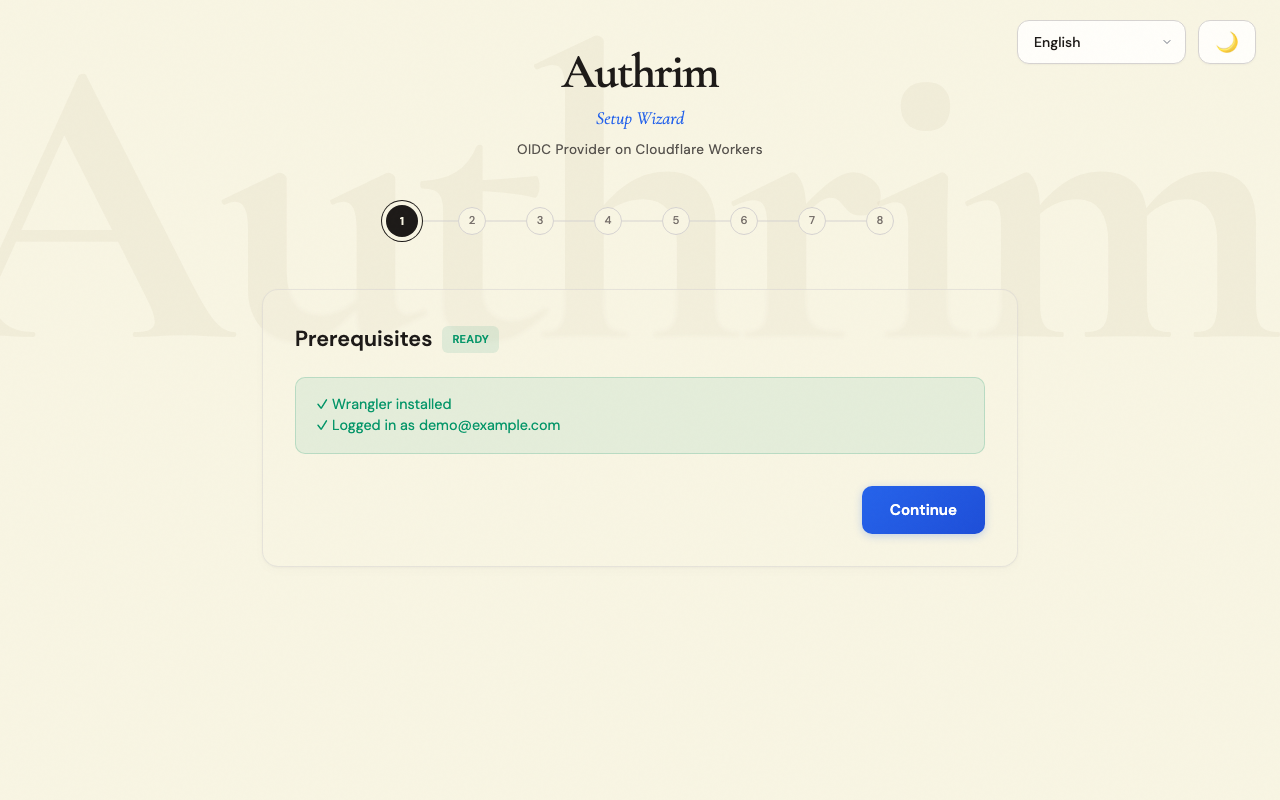
The wizard verifies your environment is ready:
Wrangler CLI
The Cloudflare command-line tool used to deploy Workers. If not installed:
npm install -g wranglerCloudflare Authentication
You must be logged in to your Cloudflare account. If not authenticated:
wrangler loginThis opens a browser window to complete OAuth authentication with Cloudflare.
What the wizard checks
- ✅ Wrangler is installed and accessible
- ✅ You’re logged in to Cloudflare
- ✅ Your account ID is valid
- ✅ Current working directory is writable
Step 2: Main Menu
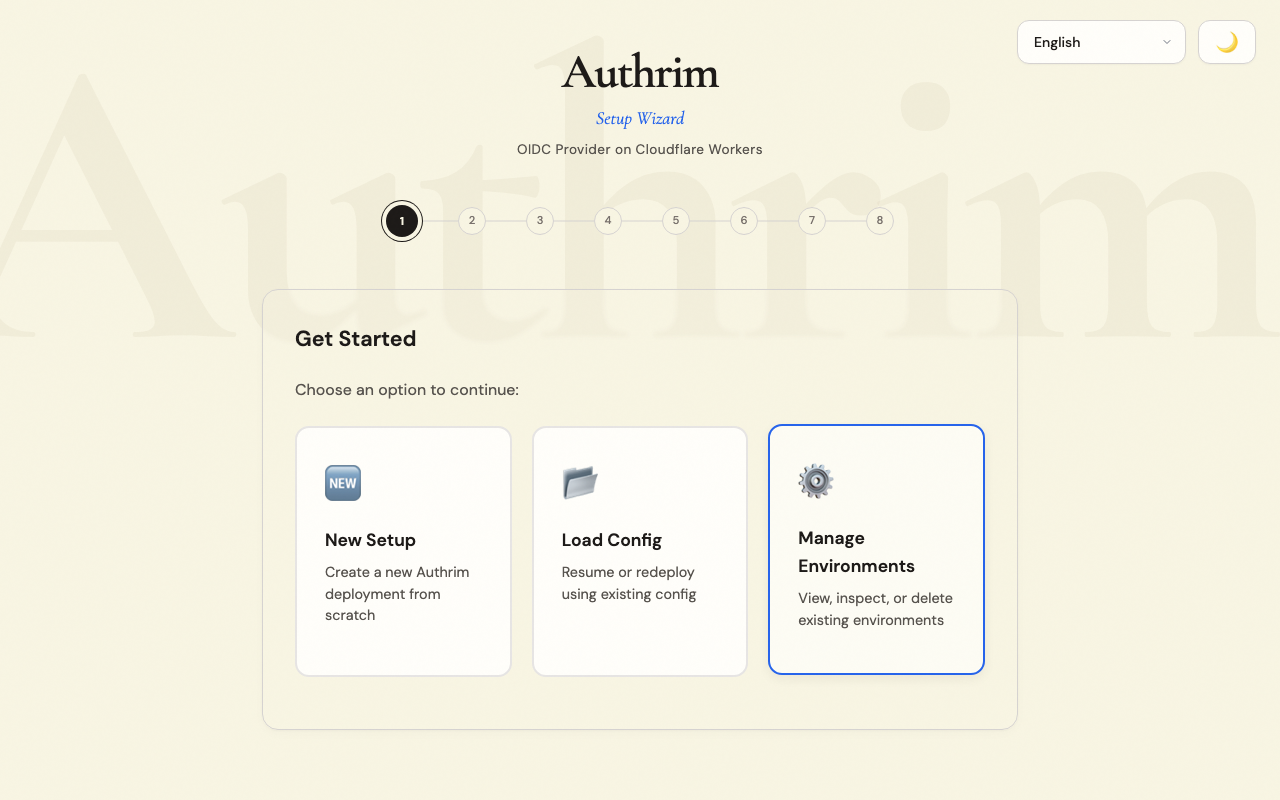
Choose from three options:
| Option | When to Use |
|---|---|
| New Setup | First time deploying Authrim, or creating a new environment |
| Load Configuration | You have a saved authrim-config.json from a previous setup |
| Manage Environments | View, update, or delete existing deployments |
Step 3: Setup Mode
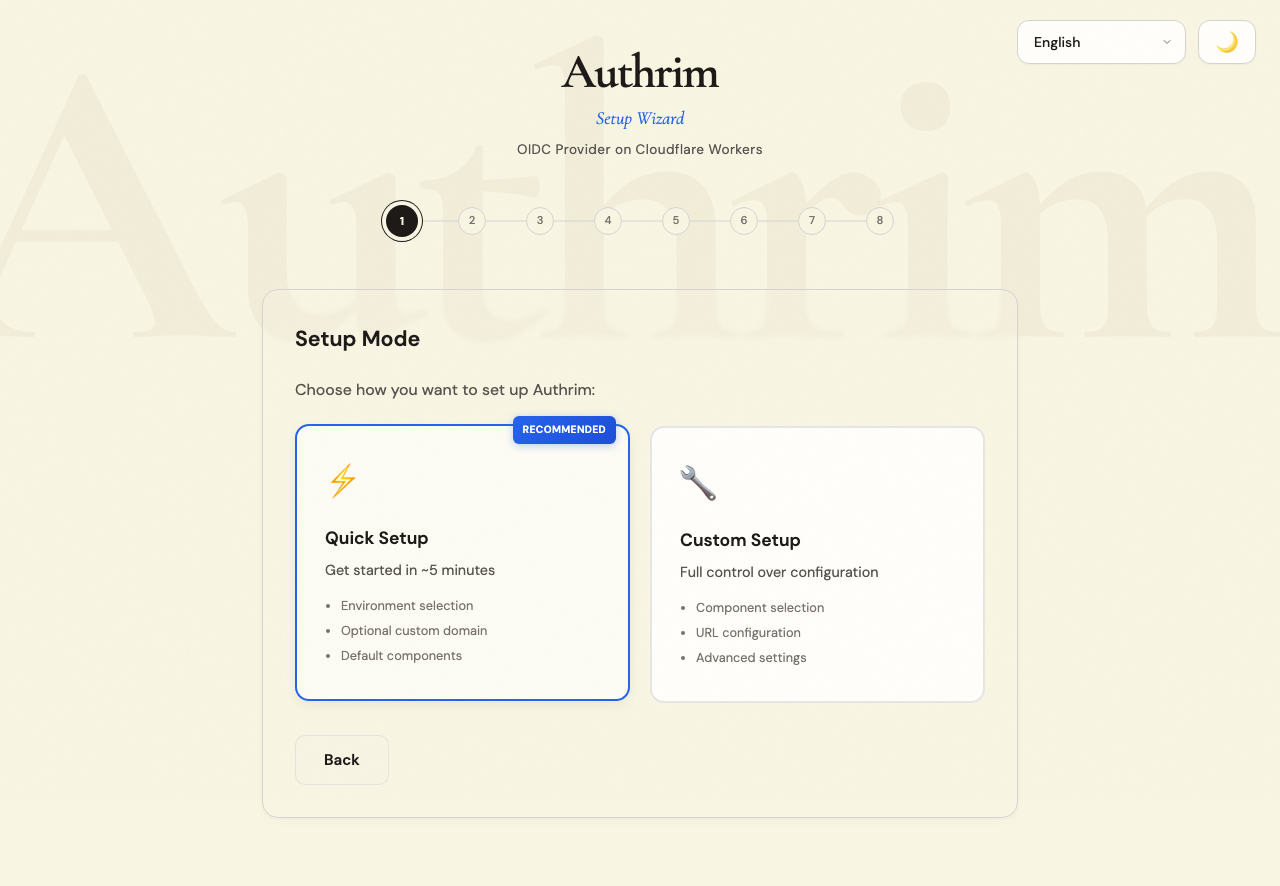
Quick Setup (Recommended)
Best for most users. Automatically configures:
- Standard OIDC components (auth, token, userinfo, discovery)
- Login UI and Admin UI
- Sensible security defaults
Custom Setup
Choose this if you need to:
- Enable optional components (SAML IdP, Device Flow, Verifiable Credentials)
- Configure specific components only
- Fine-tune advanced settings
Step 4: Configuration
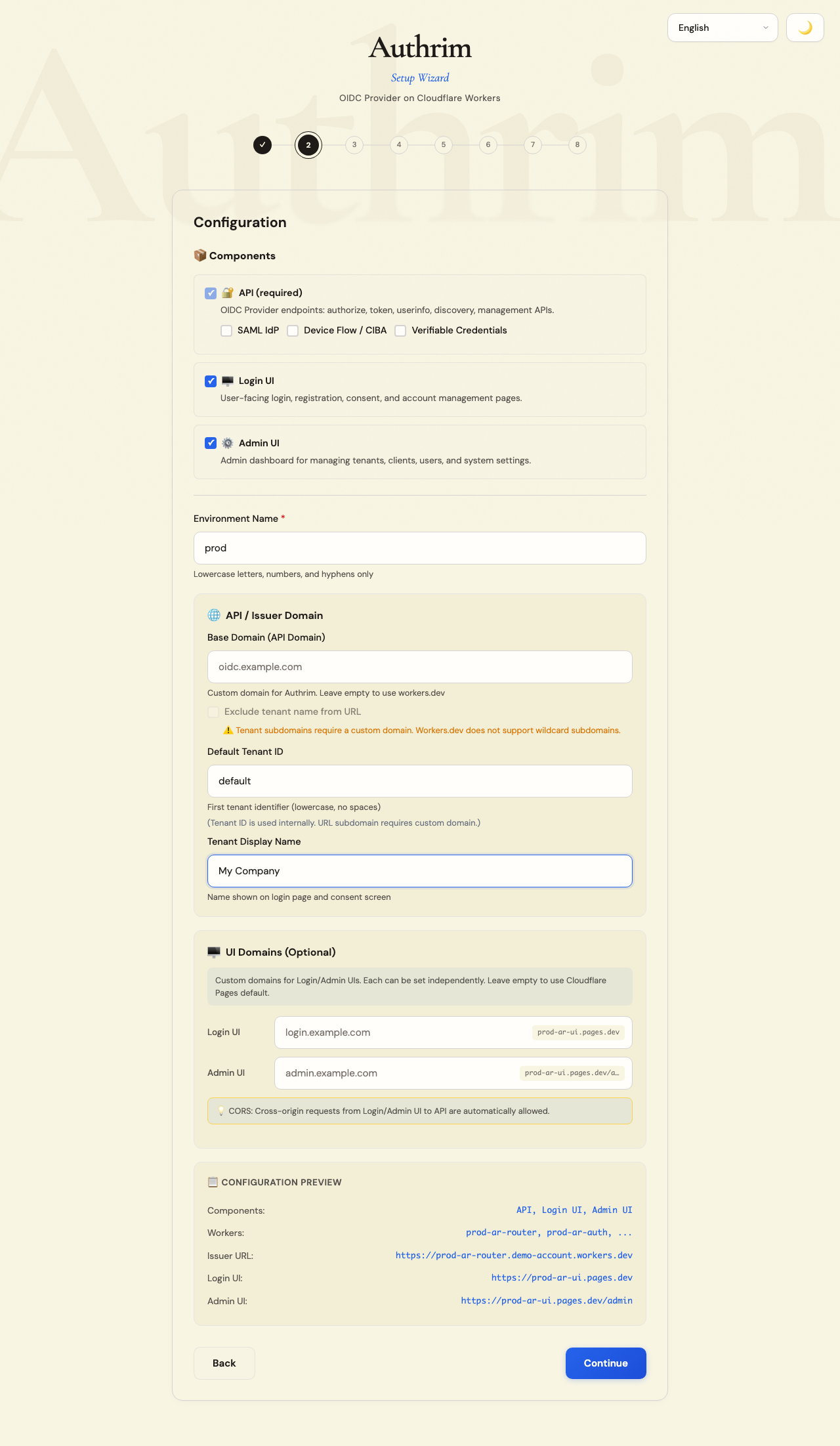
Environment Name
The environment name is a unique identifier for this deployment. It’s used as a prefix for all Cloudflare resources.
Recommended naming:
| Environment | Use Case |
|---|---|
prod | Production - live users |
staging | Pre-production testing |
dev | Development and experimentation |
You can run multiple environments simultaneously (e.g., prod and staging) under the same Cloudflare account.
Domain Configuration
Option 1: Use workers.dev (Default)
- No additional setup required
- URLs look like:
https://prod-ar-router.your-account.workers.dev - Good for development and testing
- Limitation: No wildcard subdomains for multi-tenant URLs
Option 2: Custom Domain
- Requires Workers Paid plan
- URLs look like:
https://auth.yourdomain.com - Professional appearance for production
- Supports multi-tenant subdomains:
https://tenant1.auth.yourdomain.com
To use a custom domain:
- Add your domain to Cloudflare (DNS management)
- Enter the domain in the setup wizard
- The wizard will configure the necessary DNS records
Naked Domain Option
When checked, your issuer URL will be https://auth.yourdomain.com instead of https://default.auth.yourdomain.com. Choose this if:
- You only need a single tenant
- You prefer cleaner URLs
Default Tenant
Authrim supports multiple tenants (organizations) under one deployment.
- Tenant ID: Internal identifier (e.g.,
default,acme,corp) - Display Name: Shown on login screens (e.g., “My Company”, “ACME Corp”)
For single-tenant setups, you can leave the defaults.
UI Domains (Optional)
By default, Login UI and Admin UI are deployed to Cloudflare Pages with auto-generated URLs. You can optionally configure custom domains for each.
Step 5: Database Configuration
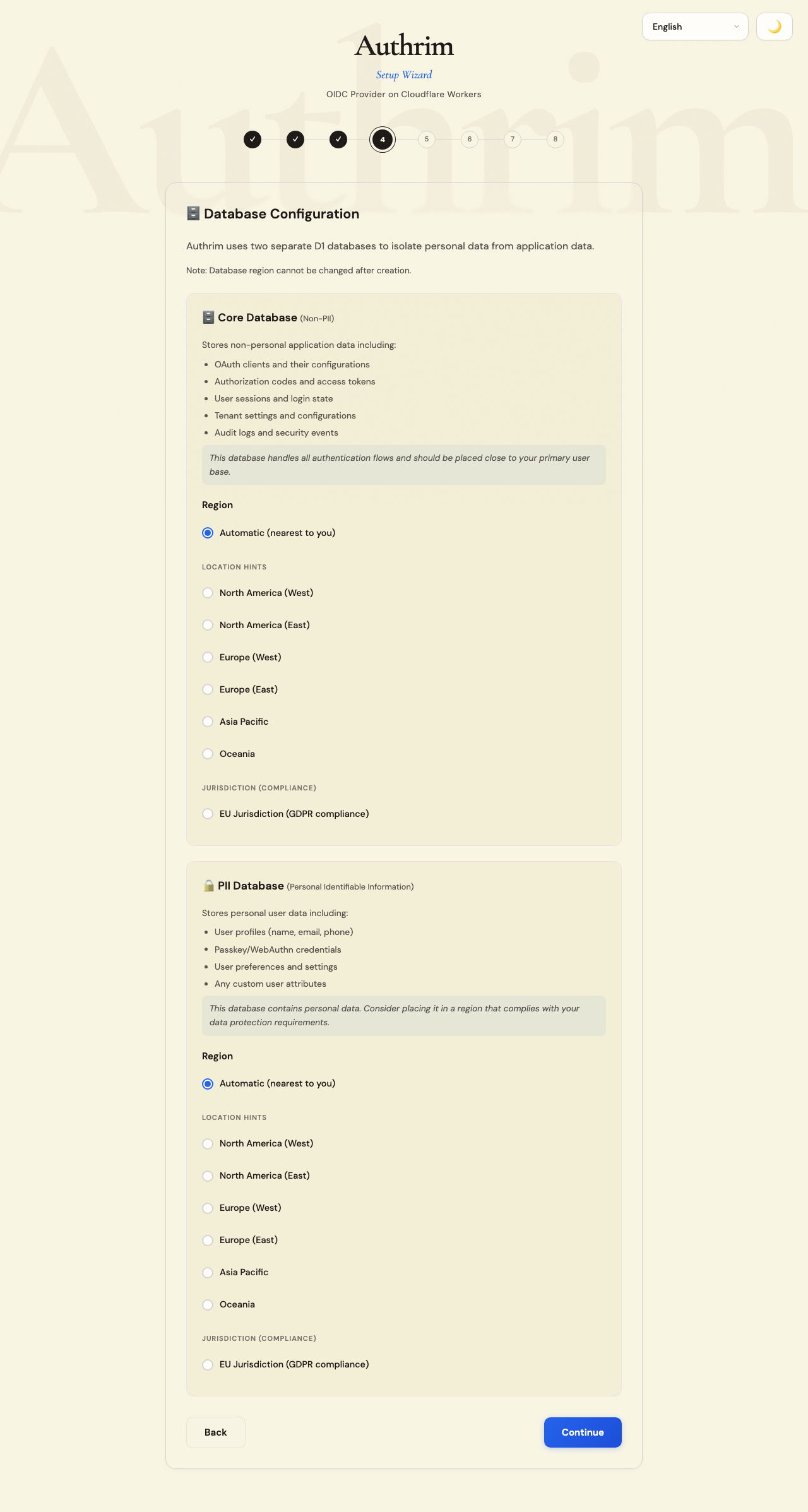
Authrim uses two separate databases for security and compliance:
Core Database (Non-PII)
Contains operational data that doesn’t identify individuals:
- OAuth client configurations
- Authorization codes and tokens (hashed)
- Tenant settings
- System audit logs
PII Database (Personal Data)
Contains personally identifiable information:
- User profiles (names, emails)
- Authentication credentials (hashed passwords, passkey data)
- User preferences
Why separate databases?
- Compliance: Easier to meet GDPR, CCPA, and other data protection requirements
- Security: PII can have stricter access controls
- Data residency: PII database can be placed in a specific region for legal requirements
Choosing a Region
Select the region based on:
| Consideration | Recommendation |
|---|---|
| User location | Choose the region closest to most of your users for best performance |
| Data residency laws | If your users are in the EU, consider WEUR for GDPR compliance |
| Corporate requirements | Some organizations mandate specific data locations |
Available regions:
- Automatic: Cloudflare selects the nearest region (good for global users)
- WNAM: Western North America (US West Coast)
- ENAM: Eastern North America (US East Coast)
- WEUR: Western Europe (good for EU data residency)
- APAC: Asia Pacific
Important: Database region cannot be changed after creation. Choose carefully for production deployments.
Typical configurations
| Scenario | Core DB Region | PII DB Region |
|---|---|---|
| US-based users | WNAM or ENAM | Same as Core |
| EU users with GDPR requirements | WEUR | WEUR |
| Global users, no data residency requirements | Automatic | Automatic |
| Asia-Pacific users | APAC | APAC |
Step 6: Email Configuration
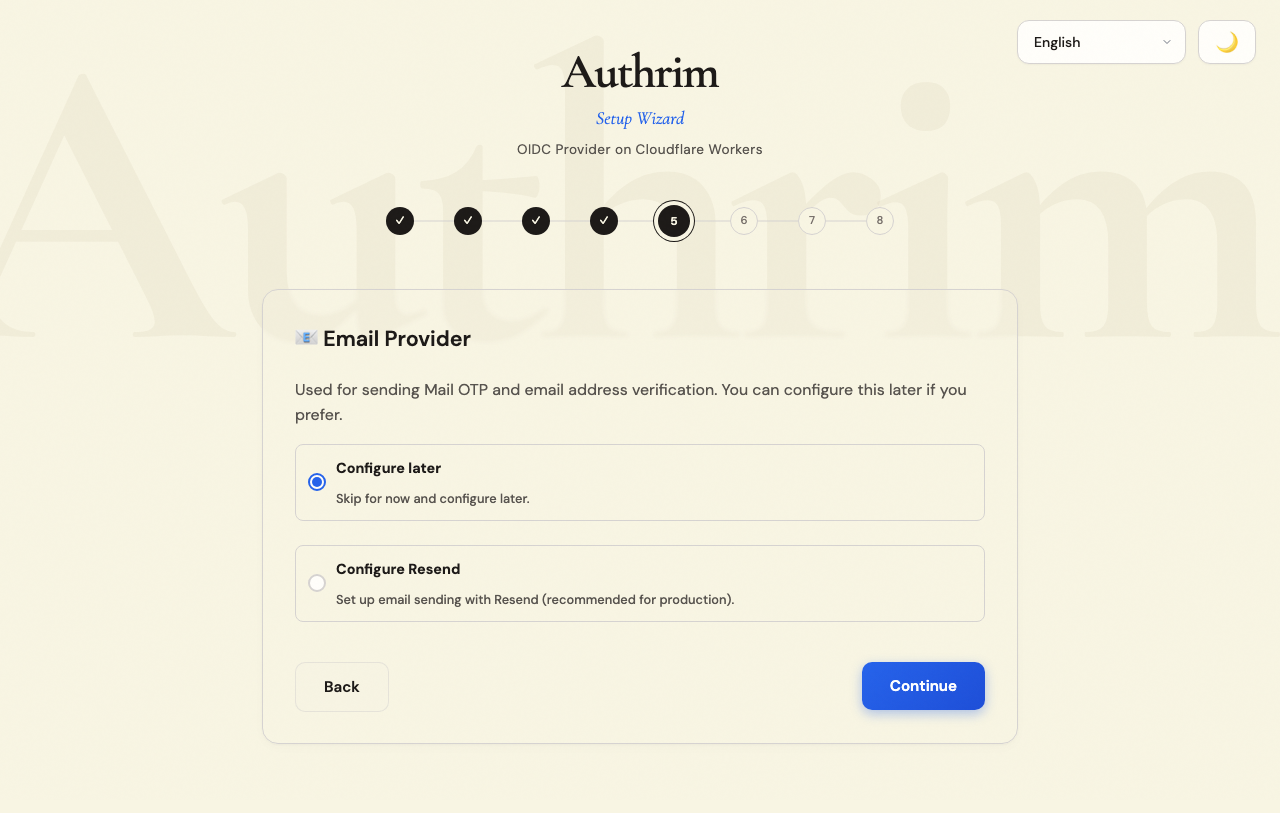
Email is used for:
- One-Time Password (OTP) verification during login
- Password reset links
- Account verification emails
Configure Now (Recommended for Production)
Resend is recommended for its simplicity and free tier:
- Create an account at resend.com
- Add and verify your domain (requires DNS access)
- Generate an API key
- Enter in the wizard:
- API Key: Your Resend API key
- From Address: e.g.,
[email protected](must be from your verified domain)
Skip for Now (Development Only)
If you skip email configuration:
- OTP codes are logged to the console (visible in Cloudflare dashboard logs)
- Password reset won’t work
- Good for development, not suitable for production
You can configure email later through the Admin UI.
Step 7: Save Configuration (Optional)
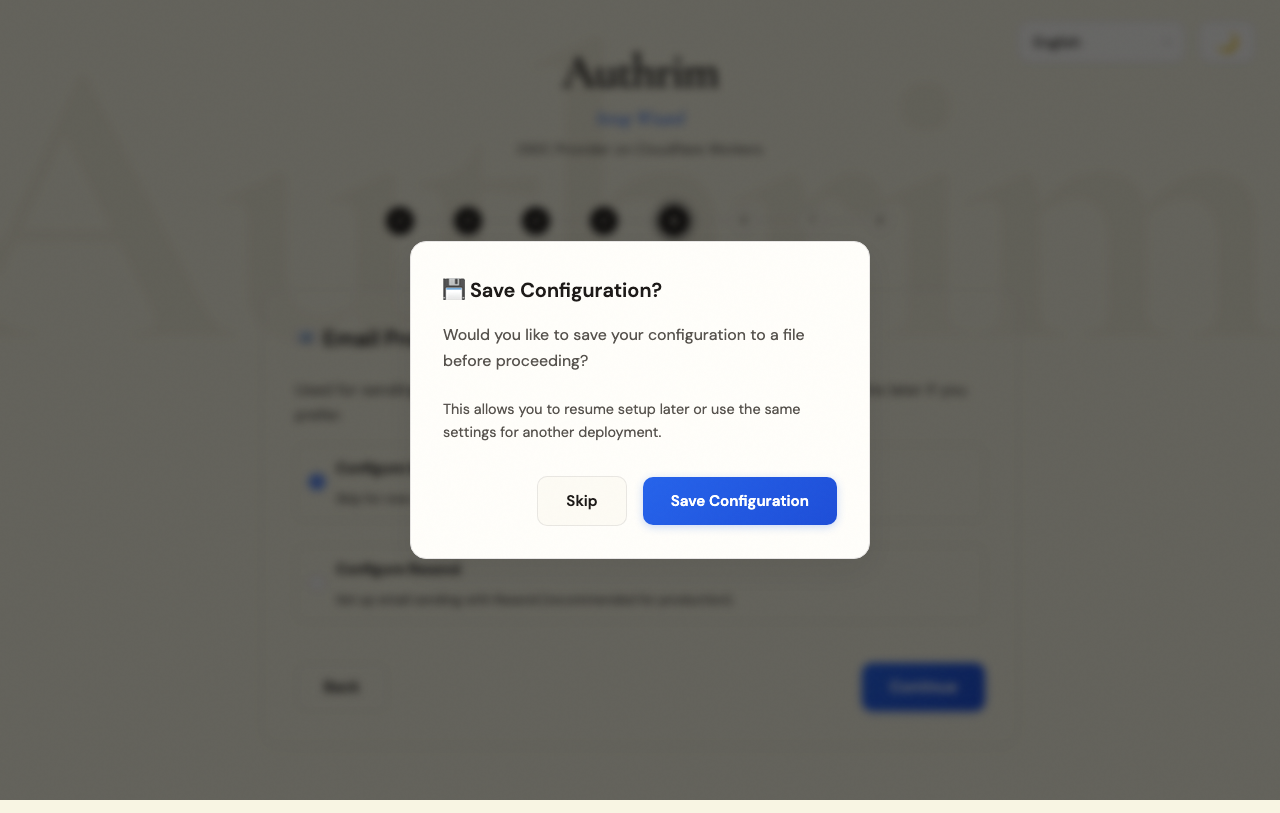
Before provisioning, you can save your configuration to a JSON file.
Benefits of saving:
- Resume setup later if interrupted
- Create identical environments (e.g., staging from prod config)
- Version control your infrastructure settings
- Share configuration with team members
The file is saved as authrim-config.json in your current directory.
Step 8: Provisioning
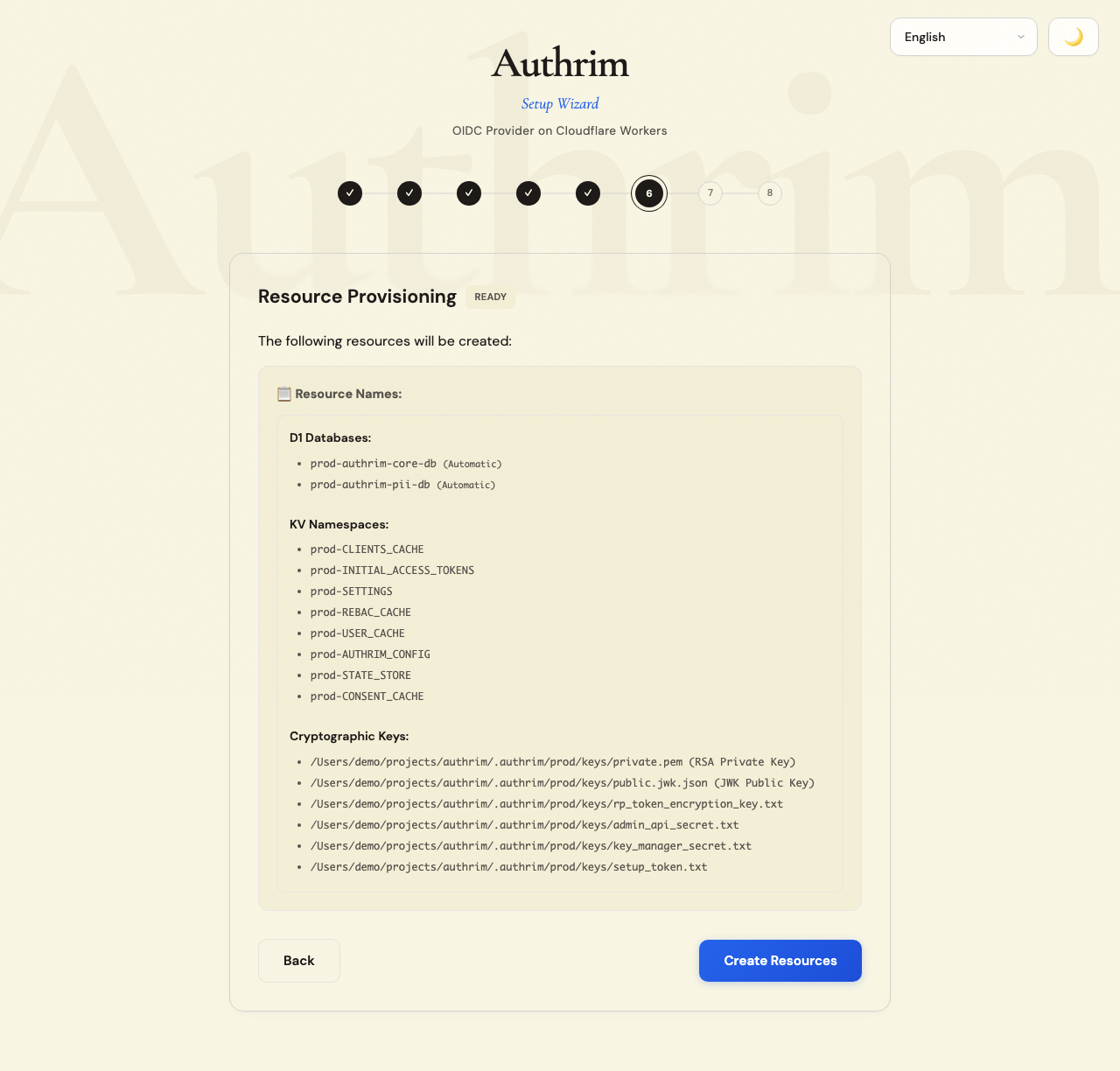
Review your configuration summary, then click Create Resources.
What gets created
| Resource | Purpose |
|---|---|
| D1 Databases (×2) | Core data and PII storage |
| KV Namespaces | Session storage, configuration cache, state management |
| RSA Keys | JWT signing for access tokens and ID tokens |
| AES Keys | Encryption for sensitive data at rest |
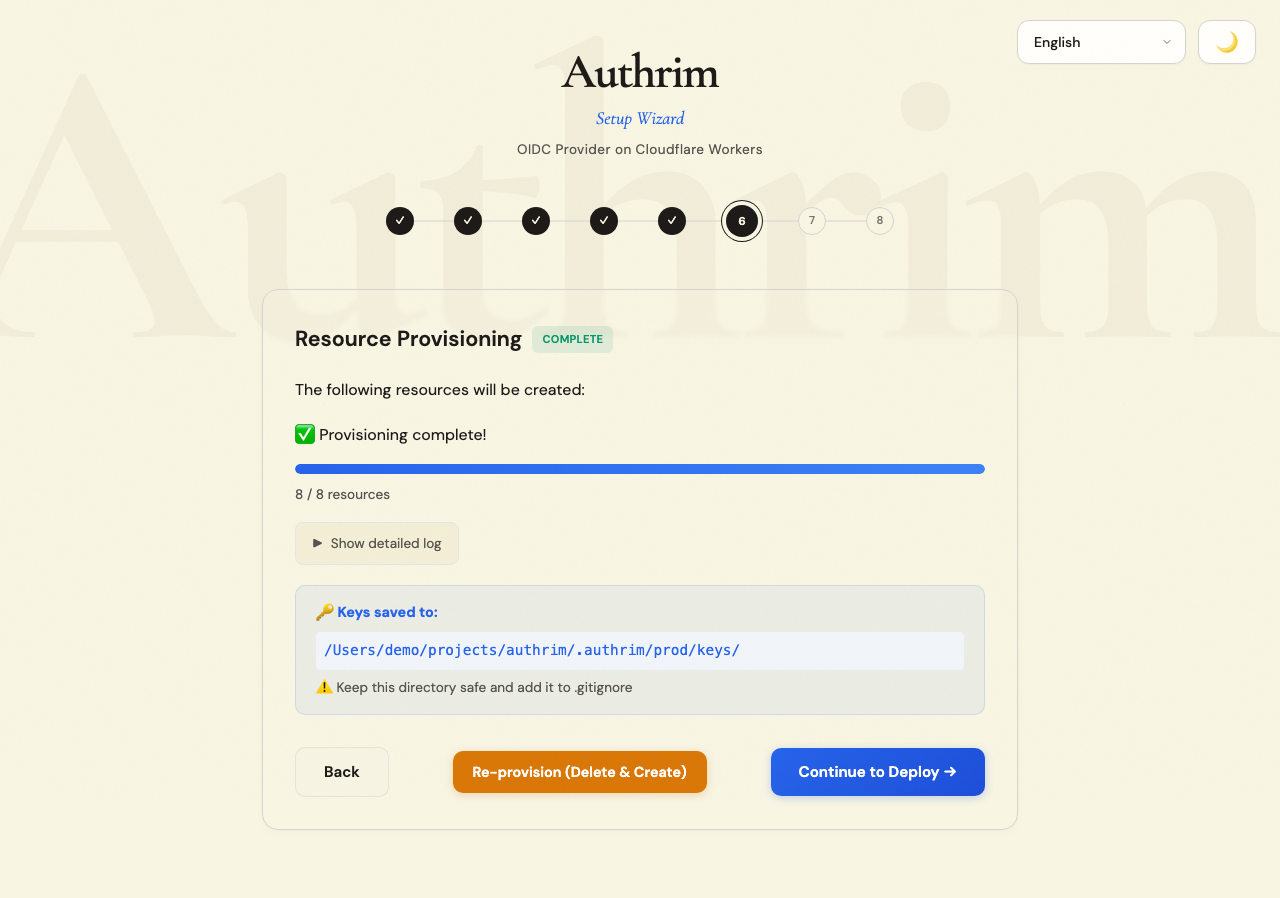
Provisioning typically takes 1-2 minutes. The wizard shows real-time progress.
If provisioning fails:
- Check your Cloudflare account has sufficient quota
- Ensure you have the necessary permissions
- Try again - transient errors are common with cloud APIs
Step 9: Deployment
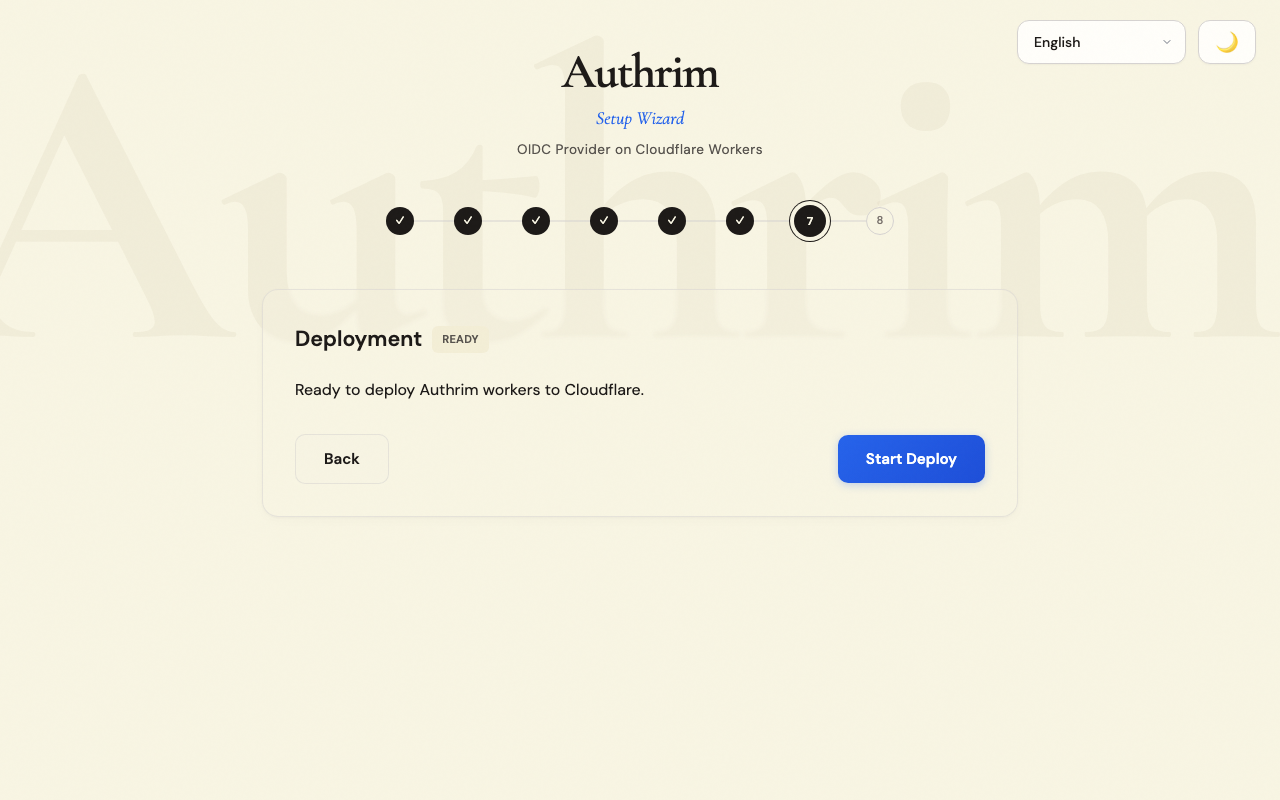
After provisioning, click Start Deploy to deploy the application.
Deployment process
- Build: Compiles all TypeScript code
- Deploy Workers: Uploads API endpoints to Cloudflare Workers
- Deploy UI: Uploads Login UI and Admin UI to Cloudflare Pages
- Run Migrations: Creates database tables and initial data
- Upload Secrets: Stores encryption keys securely
Deployment typically takes 3-5 minutes.
Step 10: Complete
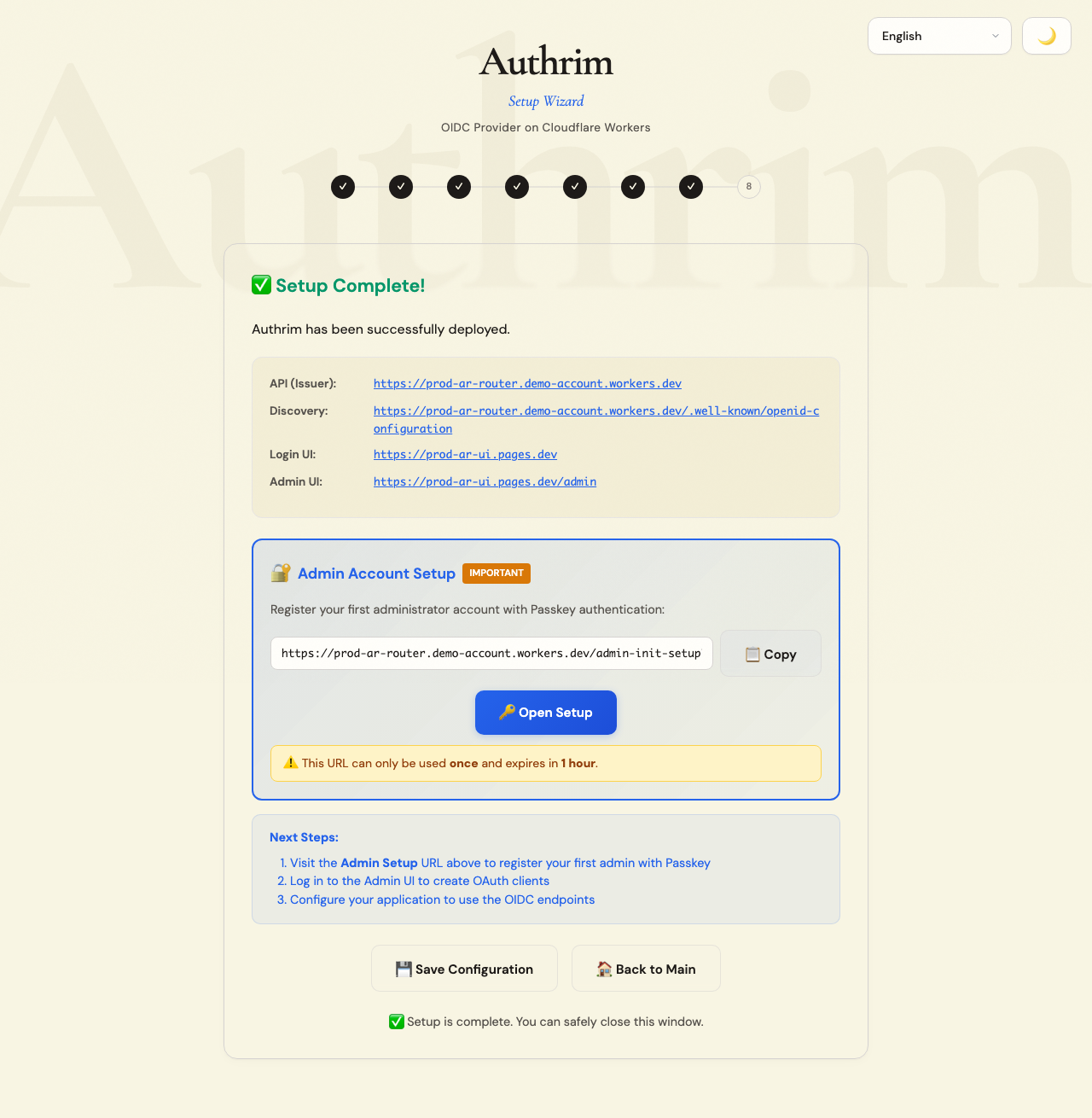
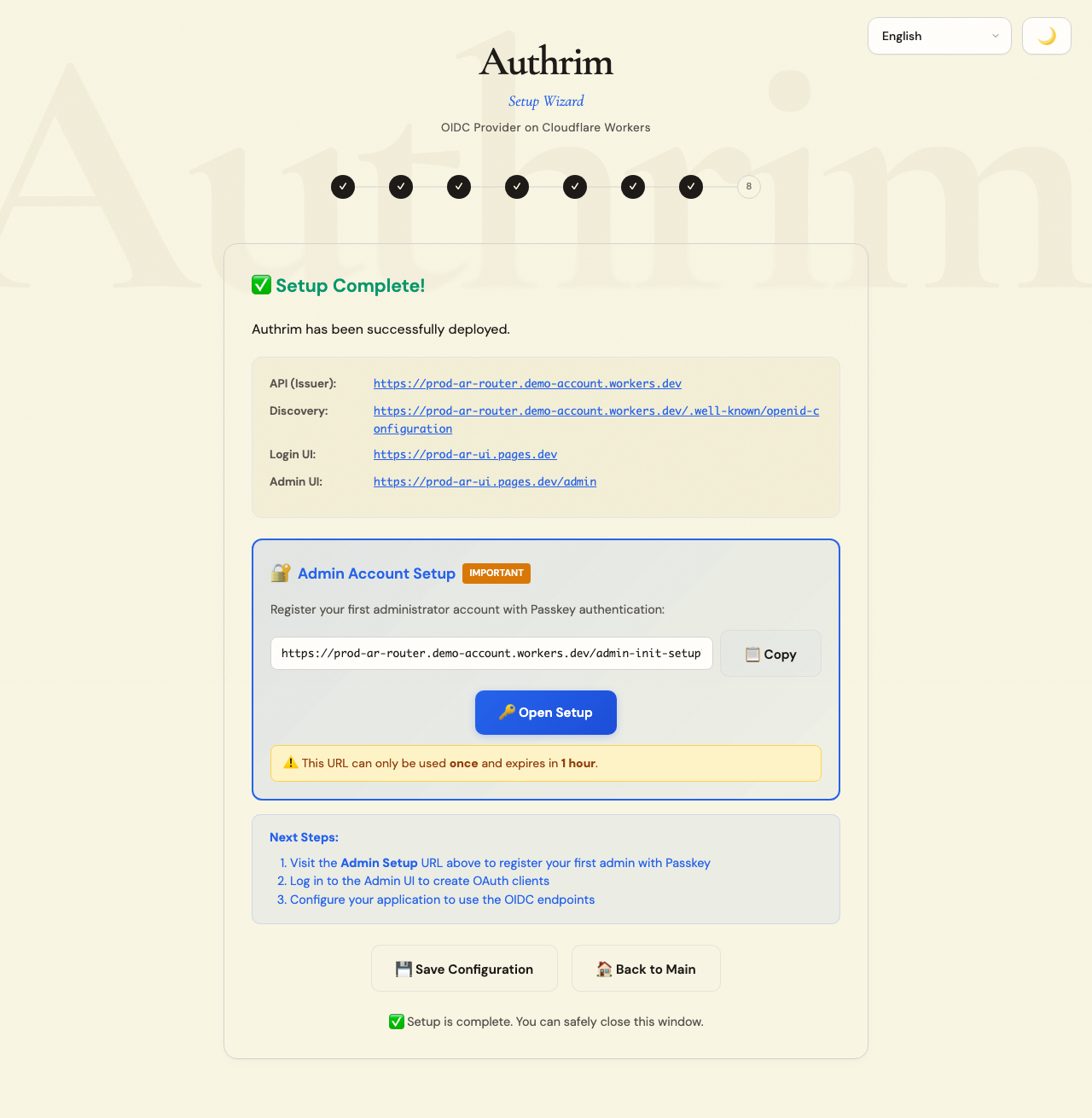
Your Authrim deployment is ready!
Important URLs
| URL | Purpose |
|---|---|
| Issuer URL | Your OIDC provider endpoint. Use this in your application’s OIDC configuration. |
| Admin Setup | One-time URL to create the first administrator account. Visit this immediately! |
| Login UI | Where your users will log in |
| Admin UI | Dashboard for managing users, clients, and settings |
Immediate Next Steps
-
Create Admin Account (Do this first!)
- Visit the Admin Setup URL shown on the completion screen
- Register using a Passkey (TouchID, FaceID, or security key)
- This URL expires and can only be used once
-
Log in to Admin UI
- Use your newly created admin account
- Explore the dashboard
-
Create Your First OAuth Client
- Go to Clients → Create Client
- Enter your application’s redirect URIs
- Save the Client ID and Secret
-
Test the Integration
- Configure your application with the Issuer URL and client credentials
- Test the login flow
Example: Configuring Your Application
Use these values from the completion screen:
// Example OIDC configurationconst oidcConfig = { issuer: 'https://your-issuer-url', clientId: 'your-client-id', clientSecret: 'your-client-secret', redirectUri: 'https://your-app.com/callback', scope: 'openid profile email'};Command Line Options
# Use CLI mode instead of Web UInpx @authrim/setup --cli
# Load existing configurationnpx @authrim/setup --config ./authrim-config.json
# Specify language (en, ja, zh-CN, zh-TW, es, pt, fr, de, ko, ru, id)npx @authrim/setup --lang ja
# Specify environment directlynpx @authrim/setup --env staging
Troubleshooting
Server fails to start
Port 3456 may be in use:
# macOS/Linuxlsof -ti:3456 | xargs kill -9
# Windowsnetstat -ano | findstr :3456taskkill /PID <PID> /F
“Wrangler not found”
npm install -g wranglerIf using a node version manager (nvm, fnm), ensure your global bin is in PATH.
”Not logged in to Cloudflare”
wrangler loginIf login fails, try:
wrangler logoutwrangler loginDeployment fails with rate limit error
Cloudflare has API rate limits. Wait 1-2 minutes and click Retry.
Custom domain not working
- Verify your domain is added to Cloudflare
- Check DNS records are properly configured
- Wait for DNS propagation (can take up to 24 hours)
- Ensure you have Workers Paid plan
Database creation fails
- Check your Cloudflare account has D1 access
- Free accounts have limited D1 databases - delete unused ones
- Try a different region if one is experiencing issues
Related Documentation
- Installation - Manual installation guide
- Quickstart - Quick deployment overview